
Email Embedded Surveys
If you have tried to send a form or a survey via email, you have probably found that very few email clients support them. As such, it is most common for them to be rejected. Continue to send a link to the survey created in Google Forms or Survey Monkey, for example. However, in this post we will teach you how to create simple surveys in the same email.
By simple surveys we mean those surveys with 2 or 3 questions whose purpose is to discover consumer preferences or customer satisfaction. Let's see it with an example. Suppose we want to investigate what flavor of ice cream our customers prefer based on their gender and age. As a survey platform, we're going to use Google Forms; it's free and very easy to use. There, we'll create a form with the following fields:

Now comes the most important part. We don't want to send the user to the form page. Therefore, what we're going to do is get the previously filled in URLs for each option.
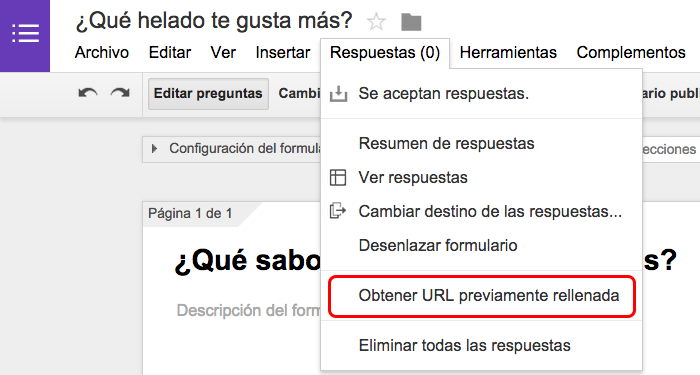
This is an example of a link that Google creates for us.
https://docs.google.com/forms/d/10qr21F6CU07A8qKZM1AgO572heSiBpMFXE5jjm7yT6A/viewform?entry.2039552153=Man&entry.978501320=Teenager&entry.1963739020=Chocolate&entry.32046361=pa**@************os.es
Now, depending on the complexity of the survey, we have to obtain the URLs for each possible option. In our case there will be 24 different url-es (2 options of gender, 3 options of age and 4 options of flavor: 2 * 3 * 4 = 24). In addition, we will have to customize the last field of Email. In the example you can see pa**@************os.es but the email address of the person who is conducting the survey would have to be included. According to the sending platform, the email can be entered in different ways. For example, in Mailchimp, the following code would have to be entered: *|EMAIL| (Mega re tags from Mailchimp).
Then, the link in Mailchimp would be
https://docs.google.com/forms/d/10qr21F6CU07A8qKZM1AgO572heSiBpMFXE5jjm7yT6A/viewform?entry.2039552153=Man&entry.978501320=Teenager&entry.1963739020=Chocolate&entry.32046361=*|EMAIL|
Well, so far the links we have created lead us to the page of the Google form previously filled out. We would like to skip that step and take the user directly to the Thank You Page. For this there is a trick described in this post which allows you to upload the forms automatically. To do this, we need to replace the part viewform? from the link byformResponse?ifq& and add &submit=Submit at the end of the link.
The link would look like this:
https://docs.google.com/forms/d/10qr21F6CU07A8qKZM1AgO572heSiBpMFXE5jjm7yT6A/formResponse?ifq&entry.2039552153=Man&entry.978501320=Teenager&entry.1963739020=Chocolate&entry.32046361=*|EMAIL|&submit=Submit
The last step we have left is Design an email with 24 links. It could be the following:
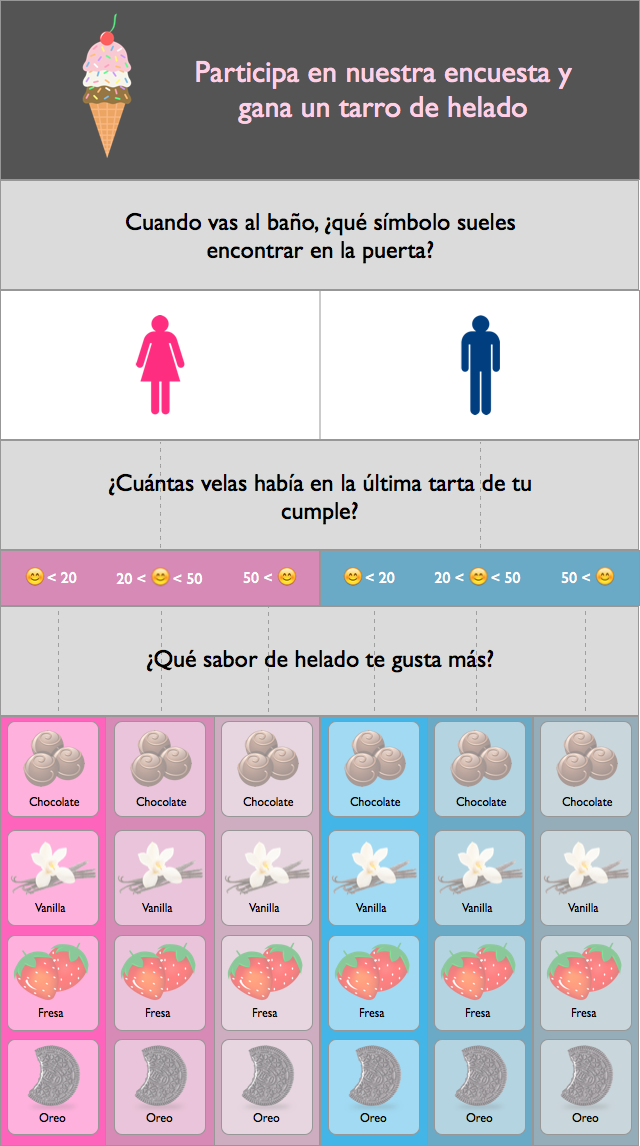
As you can see, By clicking on the email, up to 4 survey fields can be filled in and sent without requiring the user to fill in the fields.
